# Thymeleaf live reload with npm scripts
Author: [Wim Deblauwe](https://www.wimdeblauwe.com/about/) | Published: 2022-07-03 | Topics: thymeleaf, spring-boot | Canonical: https://www.wimdeblauwe.com/blog/2022/07/03/thymeleaf-live-reload-with-npm-scripts/
> [!NOTE]
> UPDATE: I created a follow-up blog [Thymeleaf live reload with Spring Boot DevTools](https://www.wimdeblauwe.com/blog/2022/07/04/thymeleaf-live-reload-with-spring-boot-devtools/) that shows a way to have Live Reload with a little less setup work, but some important drawbacks as well in my opionion. Be sure to read both blog posts to get an informed opinion about which path to take.
> [!TIP]
> If you want to add Tailwind CSS to your project, go to [Thymeleaf live reload with Spring Boot and Tailwind CSS](https://www.wimdeblauwe.com/blog/2022/08/27/thymeleaf-live-reload-with-spring-boot-and-tailwind-css/) after you applied what is shown here.
In my book [Taming Thymeleaf](https://www.wimdeblauwe.com/books/taming-thymeleaf/) I use [Gulp](https://gulpjs.com/) to setup the frontend build pipeline and have live reloading during development. For the workshop I gave at [Spring I/O 2022 Barcelona](https://2022.springio.net/), I used a different approach using NPM scripts. This avoids the extra gulp dependency with sometimes things that are not up-to-date anymore.
To get started, create a new Spring Boot application at [https://start.spring.io](https://start.spring.io/) and be sure to include Spring Web and Thymeleaf as dependencies.
Now we can add the npm scripts:
1. Create a `package.json` file in the root of your project:
```json
{
"name": "live-reload-npm-scripts"
}
```
Use the name of your project as `name`.
2. Install the necessairy NPM dependencies:
```
npm install -D @babel/cli autoprefixer browser-sync \
cssnano mkdirp ncp npm-run-all onchange \
postcss postcss-cli
```
3. Create `copy-files.js` file in the root of your project with this content:
```js
var ncp = require('ncp').ncp;
var fs = require('fs');
ncp.limit = 16;
ncp('./src/main/resources', 'target/classes', {
filter: (source) => {
if (fs.lstatSync(source).isDirectory()) {
return true;
} else {
return source.match(process.argv[2]) != null;
}
}
}, function (err) {
if (err) {
return console.error(err);
}
});
```
4. Create a `postcss.config.js` file in the root of the project:
```js
const postcssConfig = {
plugins: [require('autoprefixer')],
};
// If we are in production mode, then add cssnano
if (process.env.NODE_ENV === 'production') {
postcssConfig.plugins.push(
require('cssnano')({
// use the safe preset so that it doesn't
// mutate or remove code from our css
preset: 'default',
})
);
}
module.exports = postcssConfig;
```
5. Add a `scripts` section in `package.json` like this:
```json
{
"name": "live-reload-npm-scripts",
"scripts": {
"build": "npm-run-all --parallel build:*", (1)
"build:html": "node copy-files.js .*\\.html$", (2)
"build:css": "mkdirp target/classes/static/css && postcss src/main/resources/static/css/*.css -d target/classes/static/css", (3)
"build:js": "mkdirp target/classes/static/js && babel src/main/resources/static/js/ --out-dir target/classes/static/js/", (4)
"build:svg": "mkdirp target/classes/static/svg && node copy-files.js .*\\.svg$" (5)
},
"devDependencies": {
"@babel/cli": "^7.18.6",
"autoprefixer": "^10.4.7",
"browser-sync": "^2.27.10",
"cssnano": "^5.1.12",
"mkdirp": "^1.0.4",
"ncp": "^2.0.0",
"npm-run-all": "^4.1.5",
"onchange": "^7.1.0",
"postcss": "^8.4.14",
"postcss-cli": "^10.0.0"
}
}
```
1. `build` will run all scripts starting with `build:` in parallel
2. `build:html` copies the HTML templates to the `target` output directory
3. `build:css` will use `postcss` to copy the CSS from `src/main/resources/statis/css` to the `target` output directory.
4. `build:js` will use `babel` to copy the JavaScript from `src/main/resources/static/js` to the `target` output directory.
5. `build:svg` will copy SVG files from `src/main/resources/static/svg` to the `target` output directory.
If you currently don’t have JavaScript or SVG files for example, leave out those build scripts for now as they might give errors if there are no source files to process.
Test the command by running:
```
npm run build
```
If this is an empty project, not much will have happened, but add a Thymeleaf template, some CSS and maybe a JavaScript file and everything should be copied properly.
## Production
This `build` script is great for development, but for production we want to have some additonal behaviour like minification. For this, add the following scripts in `package.json`:
```js
{
...
"build-prod": "NODE_ENV='production' npm-run-all --parallel build-prod:*",
"build-prod:html": "npm run build:html",
"build-prod:css": "npm run build:css",
"build-prod:js": "mkdirp target/classes/static/js && babel src/main/resources/static/js/ --minified --out-dir target/classes/static/js/",
"build-prod:svg": "npm run build:svg",
},
"devDependencies": {
...
}
```
This adds the `build-prod` script which does almost the same thing as `build` with these 2 exceptions:
1. Because of the `postcss.config.js` configuration, there will be minification of CSS using `cssnano`.
2. The `babel` tool is run using the `--minified` flag
To run:
```
npm run build:prod
```
If you check the output in your `target` directory, you should see the changes to the CSS and/or JavaScript files.
## Live reload
All these previous steps are needed to be able to do what we really want when developing a UI: live reload to quickly see changes as we do them.
For this, add these scripts to `package.json`:
```json
{
...
"watch": "npm-run-all --parallel watch:*",
"watch:html": "onchange 'src/main/resources/templates/**/*.html' -- npm run build:html",
"watch:css": "onchange 'src/main/resources/static/css/**/*.css' -- npm run build:css",
"watch:js": "onchange 'src/main/resources/static/js/**/*.js' -- npm run build:js",
"watch:svg": "onchange 'src/main/resources/static/svg/**/*.svg' -- npm run build:svg",
"watch:serve": "browser-sync start --proxy localhost:8080 --files 'target/classes/templates' 'target/classes/static'"
},
"devDependencies": {
...
}
```
The `watch:html`, `watch:css`, `watch:js` and `watch:svg` all check if there is a change in the source folders. If so, they call the relevant script to build/copy the files to the `target` folder. The `watch:serve` script sets up a proxy at port 3000 for our Spring Boot application running on localhost at port 8080.
> [!NOTE]
> Windows does not seem to like the single quotes that are used.
>
> As a workaround, use escaped double qoutes instead like this:
>
> ```json
> {
> ...
> "watch:html": "onchange \"src/main/resources/templates/**/*.html\" -- npm-run-all --serial build:css build:html",
> "watch:css": "onchange \"src/main/resources/static/css/**/*.css\" -- npm run build:css",
> "watch:js": "onchange \"src/main/resources/static/js/**/*.js\" -- npm run build:js",
> "watch:svg": "onchange \"src/main/resources/static/svg/**/*.svg\" -- npm run build:svg",
> "watch:serve": "browser-sync start --proxy localhost:8080 --files \"target/classes/templates\" \"target/classes/static\""
> }
> ```
Now run:
```
npm run watch
```
This will start all watches and open your browser at [http://localhost:3000](http://localhost:3000/).
However, this won’t work properly yet. We need a bit more setup on the Maven/Java side of things.
## Maven
Because we now copy our HTML, CSS, JavaScript and SVG with NPM, we need to disable Maven also copying those files.
Update your `pom.xml` with the following excludes:
```xml
...
src/main/resources
**/*.html
**/*.css
**/*.js
**/*.svg
...
```
This stops Maven from also trying to copy those files.
Next, we can instruct Maven to call into our NPM scripts when it builds the application by using the `frontend-maven-plugin`:
```xml
...
17
1.10.0
v16.13.1
8.1.2
src/main/resources
**/*.html
**/*.css
**/*.js
**/*.svg
com.github.eirslett
frontend-maven-plugin
${frontend-maven-plugin.version}
install-frontend-tooling
install-node-and-npm
${frontend-maven-plugin.nodeVersion}
${frontend-maven-plugin.npmVersion}
run-npm-install
npm
run-npm-build
npm
run build
org.springframework.boot
spring-boot-maven-plugin
com.github.eirslett
frontend-maven-plugin
...
```
With this configuration, we can just do a `mvn verify` and the application will be properly build using the NPM scripts we created.
As a final change to the `pom.xml`, we can add a profile that calls our production NPM scripts. At release time, be sure to enable this Maven profile.
```xml
...
release
com.github.eirslett
frontend-maven-plugin
run-npm-build
npm
run build-prod
```
## Thymeleaf cache
By default, Thymeleaf will cache the HTML templates for performance reasons. If we want to have live reload working, we need to disable this caching.
Create an `application-local.properties` file in `src/main/resources` like this:
```properties
spring.thymeleaf.cache=false
```
Personally, I add an entry to `.gitignore` to avoid that this file gets committed since there might be settings in there in the future that are specific to my local machine.
We are now fully ready to start our application with live reload:
1. Start your Spring Boot application using the `local` Spring profile. You can configure this in the IntelliJ IDEA run configuration for example.
2. Run `npm run build && npm run watch` in a terminal window.
If you don’t like the verbose output, you can also run `npm run --silent build && npm run --silent watch`
> [!NOTE]
> Be sure to have started your Spring Boot application before starting the `watch` script. Otherwise, there is nothing running at port 8080 to proxy.
This animated GIF shows the live reload in action:
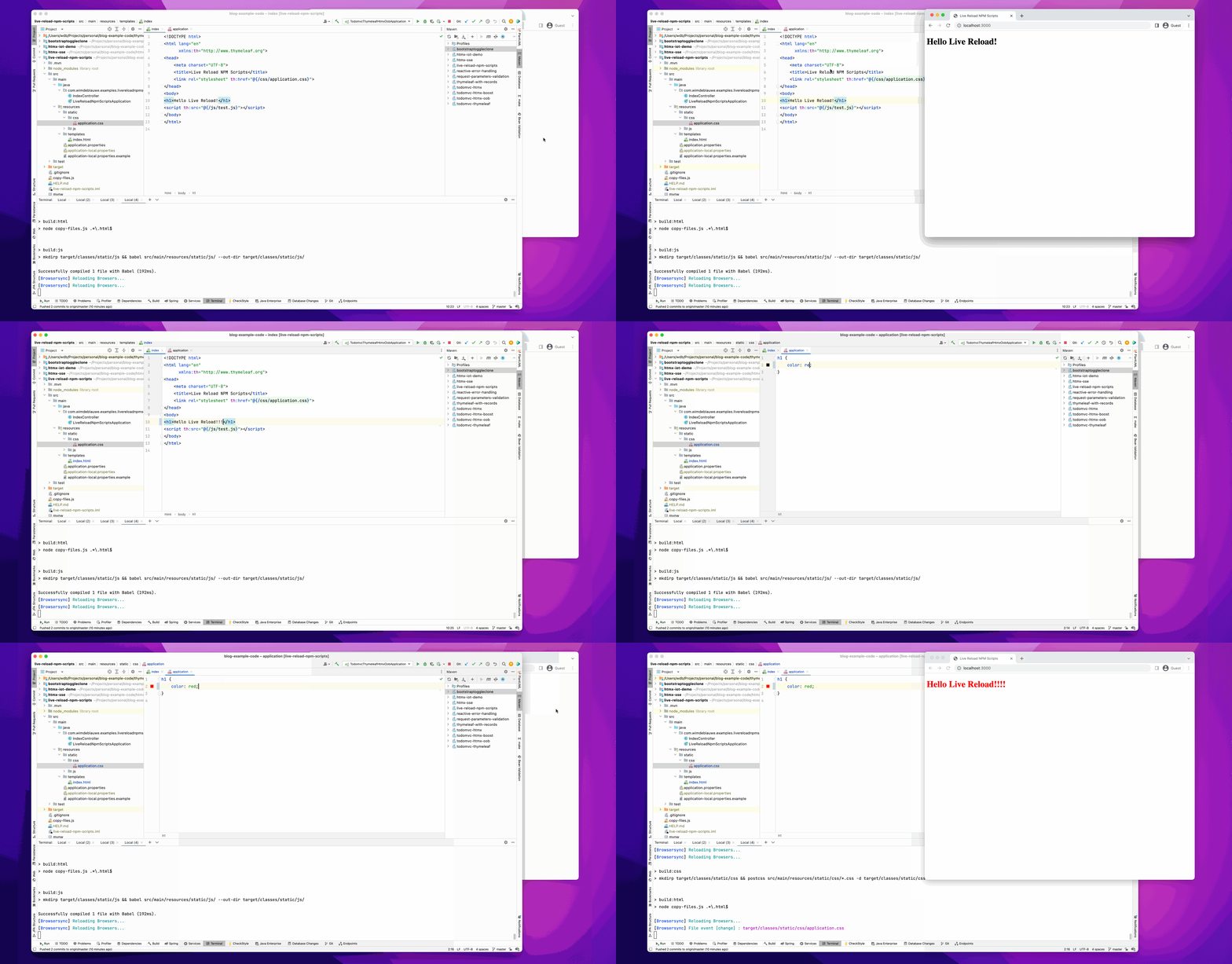
By switching to Chrome after the changes are done, IntelliJ auto-saves the HTML and the CSS file. The watch script kicks in and the browser refreshes to show the changes.
## Conclusion
By using NPM scripts, we can use the NPM ecosystem to build our Thymeleaf UI and have live reload to quickly validate any change to our HTML templates, CSS files or JavaScript code.
See [live-reload-npm-scripts](https://github.com/wimdeblauwe/blog-example-code/tree/master/live-reload-npm-scripts) on GitHub for the full sources of this example.
If you have any questions or remarks, feel free to post a comment at [GitHub discussions](https://github.com/wimdeblauwe/wimdeblauwe.com/discussions).